Troubleshooting Cisco VPN
While the Cisco VPN is required to access all Research Computing services--including the supercomputers--Research Computing does not manage or maintain the Cisco VPN: it is maintained by the Enterprise Technology (ET) group.
Below are troubleshooting steps you can take for common connectivity. If none of these steps work, please reach out to ET for support. You can try to contact them through the ASU help front desk (via your MyASU "Help" tab) or via their official contact information.
To ensure a smooth and reliable VPN connection, we recommend using the official Cisco VPN client, which can be obtained from: https://sslvpn.asu.edu. Enterprise Technology has made configuration changes and adjustments that cause compatibility/connection issues with alternative VPN clients such as OpenConnect.
OSX Systems (Macs)
“Connect capability is unavailable because the VPN service is unavailable”
This is a known issue with the Cisco VPN on OSX. Enterprise Technology (ET) has provided a patch for this, and it is available from ASU MyApps page under the heading “Is the SSL VPN failing to connect on your Mac?”
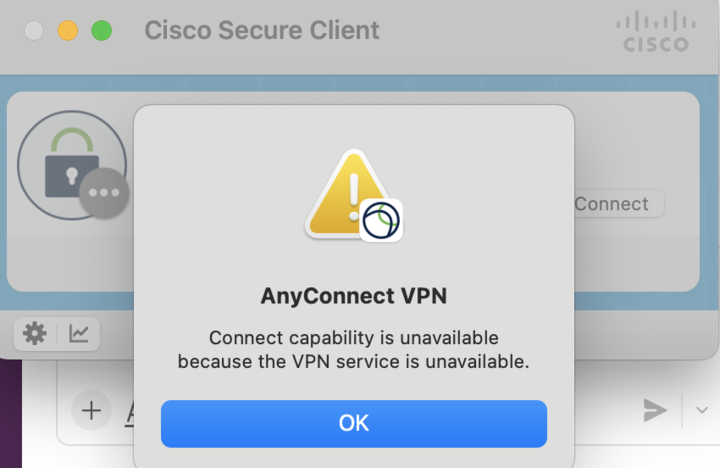
When using the patch from ET, you must right-click and select “Open” from the popup, otherwise an error will appear.
You can alternatively run the following commands in terminal:
sudo cp /opt/cisco/secureclient/bin/Cisco\ Secure\ Client\ -\ AnyConnect\ VPN\ Service.app/Contents/Resources/com.cisco.secureclient.vpnagentd.plist /Library/LaunchDaemons/

sudo launchctl bootstrap system /Library/LaunchDaemons/com.cisco.secureclient.vpnagentd.plist
If prompted about blocked actions, click “Open System Settings”, and then “Allow” to allow the Cisco VPN to install the necessary network settings. Finally, restart the Cisco VPN, and reconnect.
Disable IPv6 on MacOS
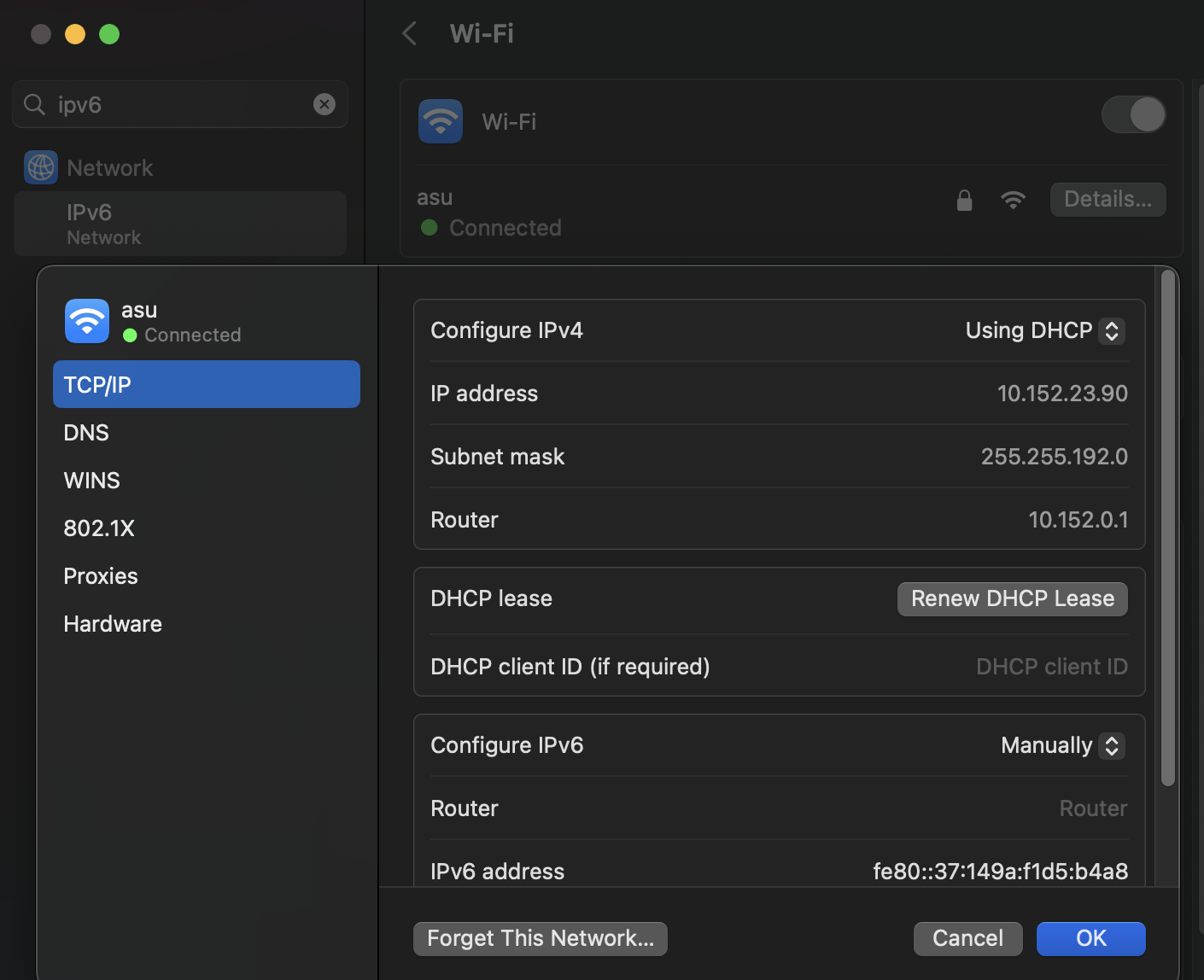
If you are using a Mac and are connected to the Cisco VPN but still cannot access Research Computing services, you may need to disable IPv6 on your Mac. This can resolve Cisco Secure Client VPN issues, especially DNS resolution errors.
Common errors include:
Could not resolve hostnameServer IP address could not be foundSafari can't find the serverERR_NAME_NOT_RESOLVED
If you are seeing any of these errors, then you should disable IPv6.
To disable IPv6 for Wi-Fi, open Terminal and run:
sudo networksetup -setv6off Wi-Fi
Alternatively, you can use the System Settings GUI. Search for “IPv6” and change the “Configure IPv6” option to “Manually”.
Uninstalling the VPN on MacOS
If you have to uninstall the Cisco VPN, you will need to use the command line to remove it with the uninstall tool.
sudo /opt/cisco/secureclient/bin/vpn_uninstall.sh
Windows Troubleshooting
Domain name resolution is one of the primary features the Cisco VPN offers and allows your workstation to reach hosts by their simple name, such as sol.asu.edu rather than by remembering their IP address.
If you have authenticated to the Cisco VPN successfully, but cannot reach services with either SSH or the web portal, this is the likely culprit.
First, ensure that you are connected to the VPN. Once you are connected, a small globe with a lock icon will appear. Hovering over it will display the "connected" status.

Next, verify the VPN has properly adjusted the system's routing tables with the command:
route print | findstr 10.139.120.0

You should see at least one returned line, and if none are returned, then the routing table adjustments did not succeed.
Next, ping the service you are trying to connect to. In most cases--such as to connect to the Sol supercomputer--you can use this:
PS C:\Users\rcsparks> ping sol.asu.edu
Pinging sol.asu.edu [10.139.120.2] with 32 bytes of data:
The ping will not return replies, and that is expected, but that it does return a 10. IP address (e.g., 10.139.120.2) is the indicator of whether the DNS is working.
Correcting Network DNS settings
From the start menu, search for “Network status”. You should see your network adapter listed as below. Click on "Change adapter options."
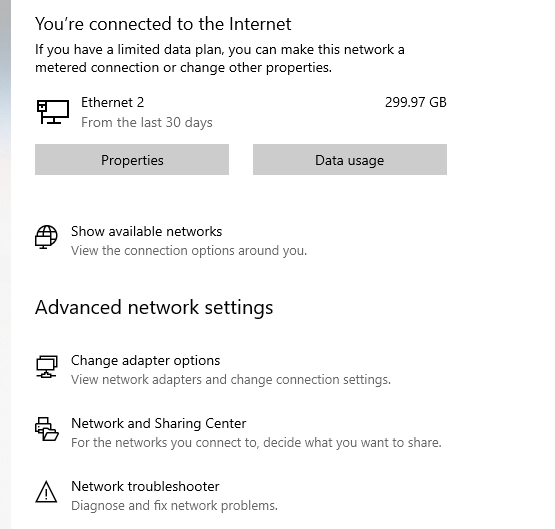
Next, select the appropriate interface and click "Properties". On a laptop, it may be a wireless connection, and on a desktop, wired connections will be identified as "Ethernet 1" or "Ethernet 2".
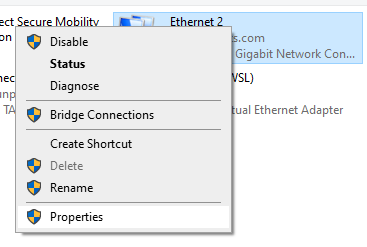
On the interface Properties modal box, select "Internet Protocol Version 4" and once again hit "Properties".
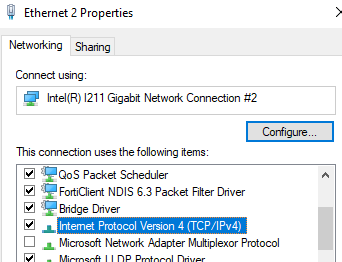
While connected to the VPN, your DNS servers should report 129.219.17.200 or 129.219.17.5.

If neither of these values are present, first confirm you are successfully connected to the VPN. Once connected, manually set at most one of the above values. When you are not connected to the VPN, the preferred value will be “Obtain DNS server automatically”.
System Software
If these above steps fail, you will need to examine additional software installed on your machine. Other VPNs, Antivirus software, or DNS redirectors will all cause issues with the VPN. Please disable any of these to start narrowing down what could be the problematic software. If disabling these softwares does not fix the problem, you will need to reach out to Enterprise Technology for assistance.
WSL2 and Cisco AnyConnect VPN Internet Issue
Symptom; If you are using Windows and the Windows Subsystem for Linux, you may have issues when trying to access software repositories, such as when you do sudo apt update while on the Cisco VPN. However, updates work when the Cisco VPN is off.
Err:1 http://archive.ubuntu.com/ubuntu focal InRelease
  Temporary failure resolving 'archive.ubuntu.com'
Err:2 http://security.ubuntu.com/ubuntu focal-security InRelease
  Temporary failure resolving 'security.ubuntu.com'
Err:3 http://archive.ubuntu.com/ubuntu focal-updates InRelease
  Temporary failure resolving 'archive.ubuntu.com'
Err:4 http://archive.ubuntu.com/ubuntu focal-backports InRelease
  Temporary failure resolving 'archive.ubuntu.com'
Reading package lists... Done
W: Failed to fetch http://archive.ubuntu.com/ubuntu/dists/focal/InRelease  Temporary failure   resolving 'archive.ubuntu.com'
W: Failed to fetch http://archive.ubuntu.com/ubuntu/dists/focal-updates/InRelease  Temporary   failure resolving 'archive.ubuntu.com'
W: Failed to fetch http://archive.ubuntu.com/ubuntu/dists/focal-backports/InRelease    Temporary failure resolving 'archive.ubuntu.com'
W: Failed to fetch http://security.ubuntu.com/ubuntu/dists/focal-security/InRelease    Temporary failure resolving 'security.ubuntu.com'
W: Some index files failed to download. They have been ignored, or old ones used instead.
This is a DNS-related issue and can be solved with the following steps:
- Connect to the Cisco VPN first, then open Powershell as an Administrator and take note of the return values from these commands.
Get-DnsClientServerAddress -AddressFamily IPv4 | Select-Object -ExpandProperty ServerAddresses

Get-DnsClientGlobalSetting | Select-Object -ExpandProperty SuffixSearchList
- Open Windows Subsystem for Linux (WSL2):
sudo unlink /etc/resolv.conf # this will unlink the default wsl2 resolv.conf

# This config will prevent wsl2 from overwritting the resolve.conf file everytime you start wsl2
cat <<EOF | sudo tee -a /etc/wsl.conf
[network]
generateResolvConf = false
EOF

cat <<EOF | sudo tee -a /etc/resolv.conf
nameserver 10.50... # The company DNS/nameserver from the command in step 1
nameserver 10.50... # The company DNS/nameserver from the command in step 1
nameserver 8.8.8.8
nameserver 8.8.4.4
search this.searchdomain.com # The search domain that we got from step 2
EOF
- Outside of your WSL shell, change the Cisco Anyconnect metric from the default value to 6000 (from 1) using PowerShell.
Get-NetAdapter | Where-Object {$_.InterfaceDescription -Match "Cisco AnyConnect"} | Set-NetIPInterface -InterfaceMetric 6000
- Restart WSL2 within the same elevated PowerShell session, and then you should be able to open WSL2 and establish an internet connection.
Restart-Service LxssManager
These instructions are based on several sources detailing this known issue:
- WSL2, problem with network connection when VPN used (PulseSecure)
- WSL2 ubuntu 18.04 unable to connect to IP resources with Cisco Annyconnect active
Ubuntu Linux
"You are missing the required libraries"
On newer Ubuntu systems, the default installation of Ubuntu and the Cisco VPN client does not include the necessary libraries required for successful VPN connections. When attempting to connect to the VPN, you may encounter the following error:
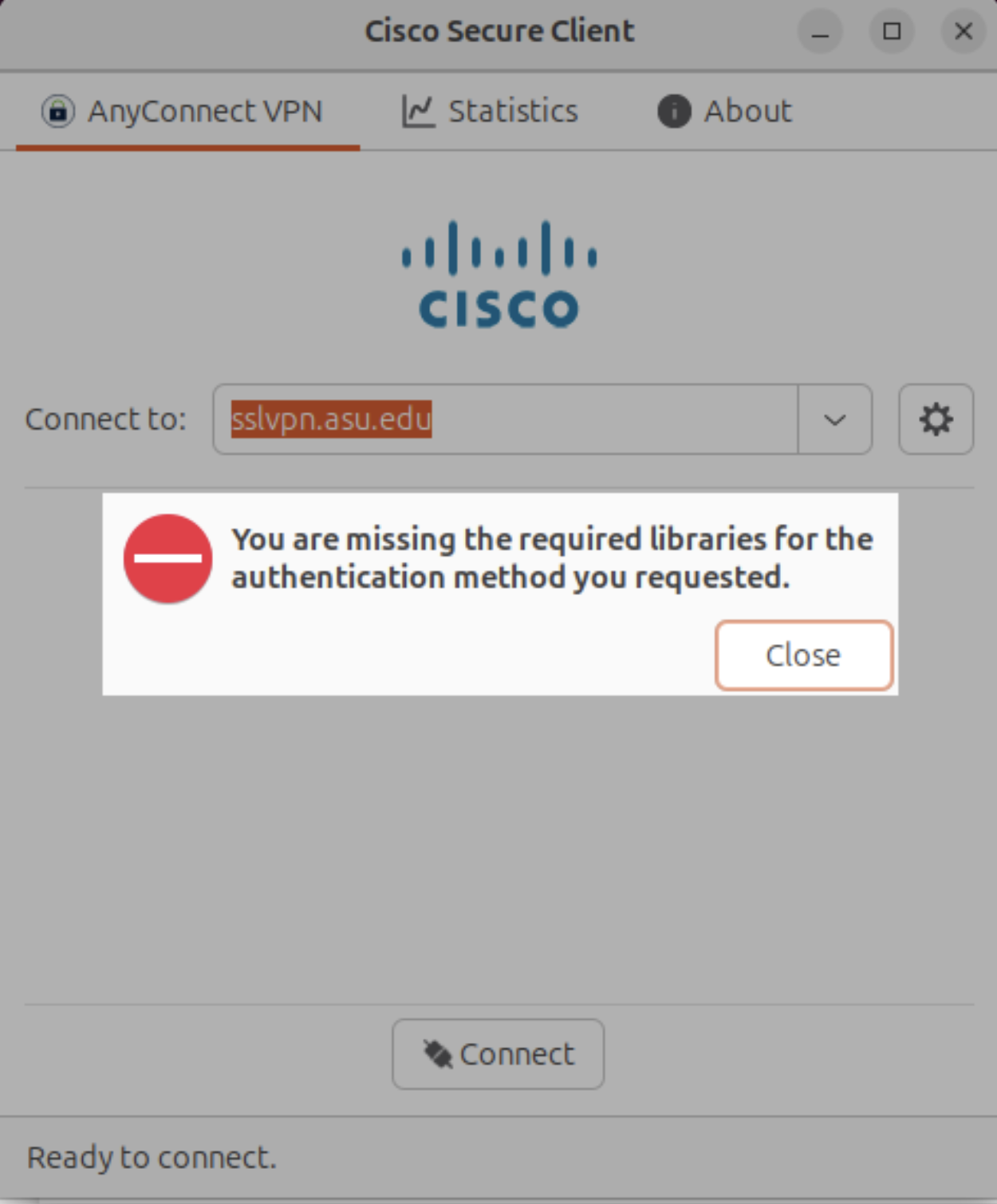
To resolve this issue, install the missing webkit2gtk library from the Jammy repository by running the following commands:
sudo add-apt-repository deb http://gb.archive.ubuntu.com/ubuntu jammy main
sudo apt update
sudo apt install libwebkit2gtk-4.0-dev
Once installed, restart the Cisco VPN client and attempt to connect again.
Visiting Student / Courtesy Affiliate Accounts
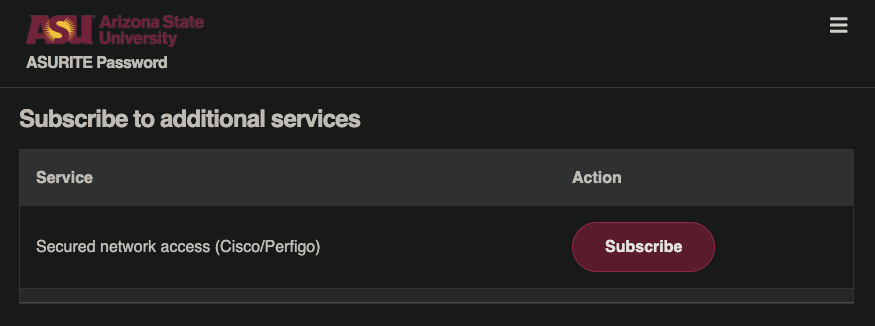
After your affiliate account is created, you may need to manually subscribe to the VPN Service.
- Navigate to: asu.edu/selfsub
- Look for "Secured network access (Cisco/Perfigo)"
- Click "Subscribe"

Systems With Docker Installed
If you are using docker, docker's default IP addresses will overlap and cause routing issues. You must change the default networks for docker on the system otherwise the Cisco VPN routes will not work correctly. Though the specific configuration changes will vary, the general steps include:
- You need to create a file
"/etc/docker/daemon.json"with a non-overlapping private IP range. Often,192.168.x.xor198.x.x.xwill work well.
Choose the size of dockers available IP range, and then also a secondary size for each network created within the broader network. In this example, there is a /15 netmask used as the base and smaller /24 networks will be created out of this.
{
  "default-address-pools":
  [
    {"base":"198.19.0.0/15","size":24}
  ]
}
- Restart the docker service
- You may also need to run:
docker network prune