Python Environments and Mamba
The supercomputer uses Mamba, a high-performance package manager, to support users to install the Python packages into a self-contained Python environment. It plays a pivotal role in optimizing software environments on supercomputers. If you have previously used conda or pip, it will be an effortless transition to use Mamba, which is a drop-in replacement.
Use mamba provided for you via the module system (e.g., ml mamba) rather than installing it directly to your own $HOME. Multiple python managers will conflict with eachother, and support admins will only be able to assist you with using the supercomputer-installed mamba.
Why Use Python Environments?
In a fresh terminal session, python or python3 points to a system-installed copy of Python (typically in /usr/bin). As the operating system heavily depends on this python instance, the version is fixed and only the most basic, built-in libraries are available.
Creating a new environment allows you to control the Python version, the precise selection of libraries and their specific versions, too. Python environments can then be engaged and disengaged freely, enabling a wide-variety of specific uses including CPU compute and even GPU acceleration.
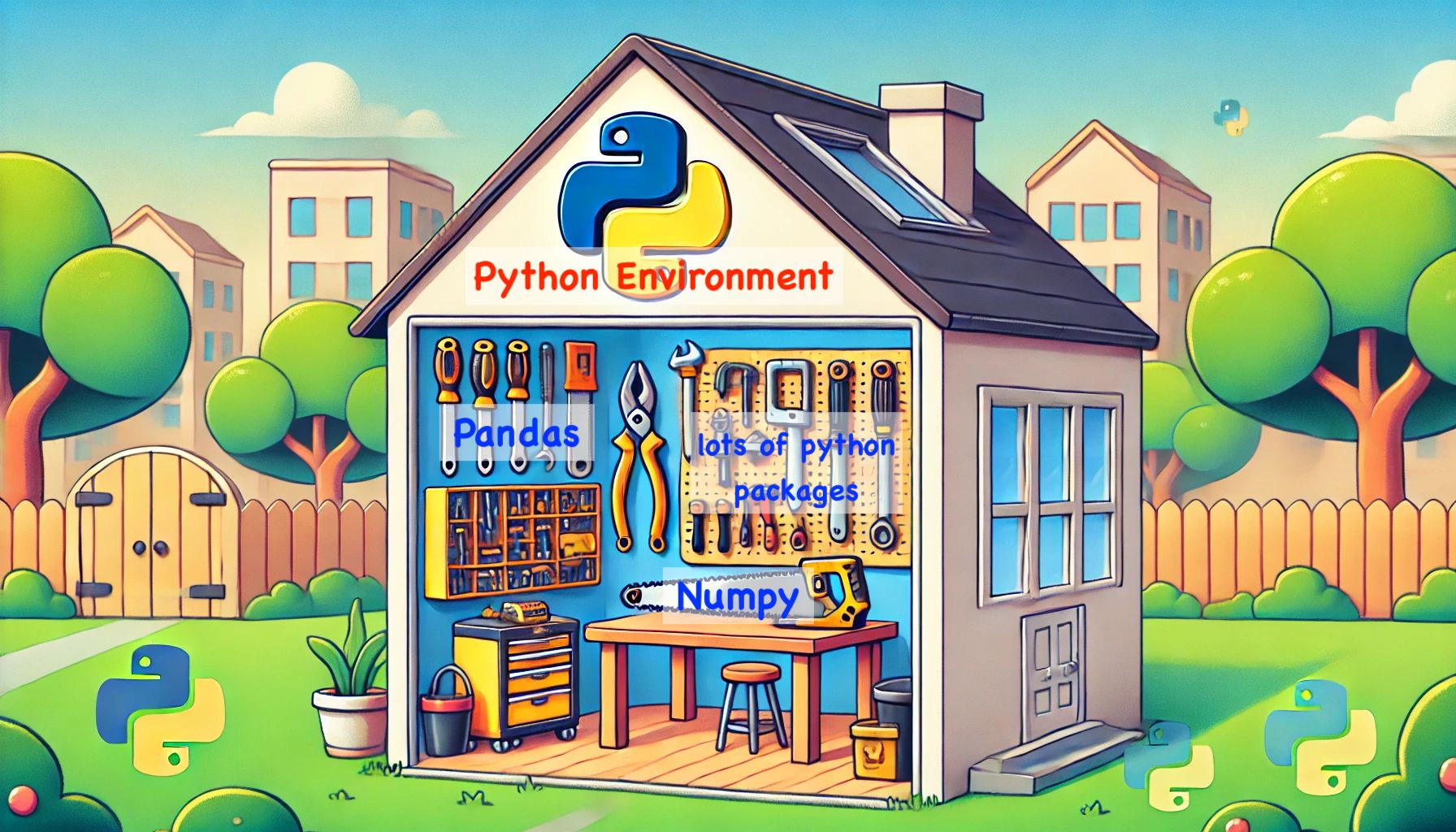
Below is a cartoon created with chatGPT, representing a Python environment as a tool shed, with python packages installed in this environment by the various tools. This helps illustrate that you can bring any number of tools (packages) into an environment--keeping them separate and contained--for highly-reproducible, purpose-built solutions.
Why Use Mamba?
Mamba has an advanced dependency solver, meaning it can resolve dependencies across both Python and non-Python libraries (unlike pip and uv which handle Python only), runs natively on our supercomputers without requiring Rust toolchains (unlike pixi), and solves environments significantly faster than conda. Research Computing discourages the use of pip except when necessary. Be careful with pip, as it can easily break all the packages in an environment!
Using Mamba
Load the latest stable version of the mamba Python manager with:
module load mamba/latest

# OR shorthand:

ml mamba
Finding Available Environments
Many Python packages such as Pytorch or Qiime are commonly-requested and thus are pre-installed by Research Computing admins on the supercomputers. These environments are version-fixed and read-only, so they may be used freely by any number of users simultaneously with confidence in their immutable contents.
All global/public/admin-maintained python environments may be found under /packages/envs. User environments are by default installed to ~/.conda/envs, and after loading the mamba module, all available environments can be enumerated with mamba info --envs.
$ mamba info --envs

  mamba version : 1.5.1
# conda environments:
#
pytorchGPU              /home/<asurite>/.conda/envs/pytorchGPU
testing                 /home/<asurite>/.conda/envs/testing
updateTest              /home/<asurite>/.conda/envs/updateTest
base                    /packages/apps/mamba/1.5.1
pytorch-1.8.2           /packages/envs/pytorch-1.8.2
scicomp                 /packages/envs/scicomp
...
Loading Available Environments
Use source activate to load an available environment. You can specify either the environment name or the path:
- by name
- by path
$ module load mamba/latest
$ source activate pytorch-1.8.2
$ module load mamba/latest
$ source activate /packages/envs/pytorch-1.8.2
Loading the mamba module and activating a Python environment only impacts the current shell (terminal session). This means you can have multiple environments running within different shells/jobs simultaneously without fear of interference.
You can tell whether an environment is currently active by examining the shell prompt--any activated environment will be listed in parentheses at the start of the line:
(gurobi-9.5.1) $ python nobel_prize.py

(gurobi-9.5.1) $ mamba list
Be mindful to only use source activate and to avoid conda activate or mamba activate even when advised by online tutorials. source activate has been proven to be the most compatible with the supercomputer configuration.
Creating Environments
This section is about installing and using two Python packages in a Mamba environment.
- in $HOME
- elsewhere
$ interactive
$ module load mamba/latest
$ mamba create -n <environment_name> -c conda-forge -c <channel> <packages>
$ interactive
$ module load mamba/latest
$ mamba create -p /data/example_group/ENV_NAME -c conda-forge [-c <channel>] [packages]
Choosing the specific path for the creation of an environment is helpful when creating a env intended for multiple users. You can, for example, save it in your /data directory allowing the same environment to be activated by multiple users in multiple jobs.
Understanding the Creation Flags
-n ENVNAME will create an environment in your $HOME directory.
-p PATH will create an environment in an arbitrary path of your choosing.
-c CHANNEL_NAME signifies "channel", which is a curated repository of related packages.
conda-forge and bioconda are some of the most popular channels for scientific work. Channels help keep complex dependency trees more simple by ensuring compatible versions of packages are downloaded together. The correct channel name can be found by searching the package name on anaconda.org. You can see a walkthrough of anaconda search here.
Do not use the defaults channel as the packages are generally ill-suited for computation packages.
For more information, you can see the Mamba official troubleshooting guide
Tips for Creating Environments
-
It is best to install all necessary packages in a single command rather than multiple, successive commands. Doing this ensures that all packages' dependencies are considered at creation time, which reduces build time and maximal compatibility.
-
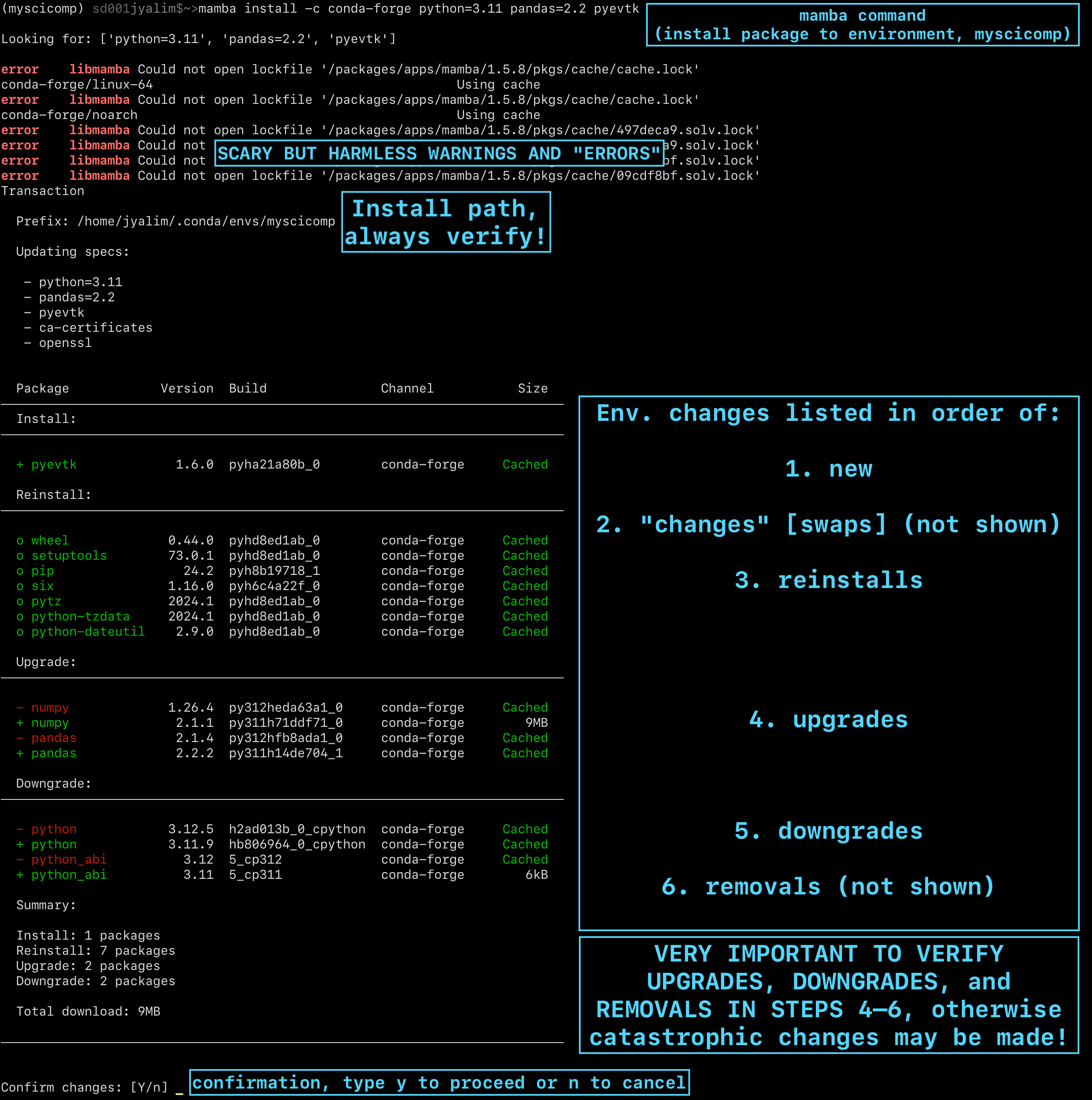
When creating environments, you may see errors related to opening files in
/packages/apps/mamba. These specific errors are harmless, but be mindful of other classes of errors. You can see an example of these below. -
It is also good practice to verify what is being installed as a new package, what existing packages are being modified, and what existing packages are being removed before proceeding with the installation.
Adding Packages to Environments
While it is recommended to attempt to create environments as completely and comprehensively as you can at the outset, there will be times you need to add more packages to an already-working environment. Follow these instructions to best ensure an operable environment tolerant of upgrades and downgrades.
Adding to an existing public environment
The global/public environments are read-only. This helps ensure other users can depend on it not changing during or between their own jobs.
Instead, clone the environment into a private environment, in which you have full control to modify packages and versions.
To clone a public environment:
$ source activate <public_environment_name>
$ mamba env export --from-history --no-builds -n <public_environment_name> > /your/preferred/path/env_recreate_file
$ source deactivate
$ mamba env create -n <your_environment_name> --file /your/preferred/path/env_recreate_file
Cloning is approximative, not identical. mamba env export creates a list of packages present in the environment and a new environment matching the identified packages will be created. It is not identical in versions, since many packages may have been updated either for bug-fixes, security patches, or otherwise.
However, if a package was added with a specific version/hash, the version/hash will be maintained.
Therefore, if you wish to preserve all the version numbers, or the pip installed packages, the --from-history and --no-builds flags may be omitted. Note that some public environments are old, and some version conflicts may arise if you specify the version numbers in the .yaml file.
Adding to a private env
To install a new package to this new mamba environment you made/own:
$ source activate <your_environment_name>
$ mamba install -c <channel> <packages>
Making environments Jupyter-compatible
Once an environment is created, you can augment the environment to be operational within Jupyter. See Preparing Python Environments for Jupyter for details.
$ mkjupy <env_name>
Creating Environments from GitHub repositories
Many python packages are not necessarily available on available mamba channels. It is best to avoid these packages when possible. However, it is possible to integrate them into a workflow. First, clone the git repository into your home directory:
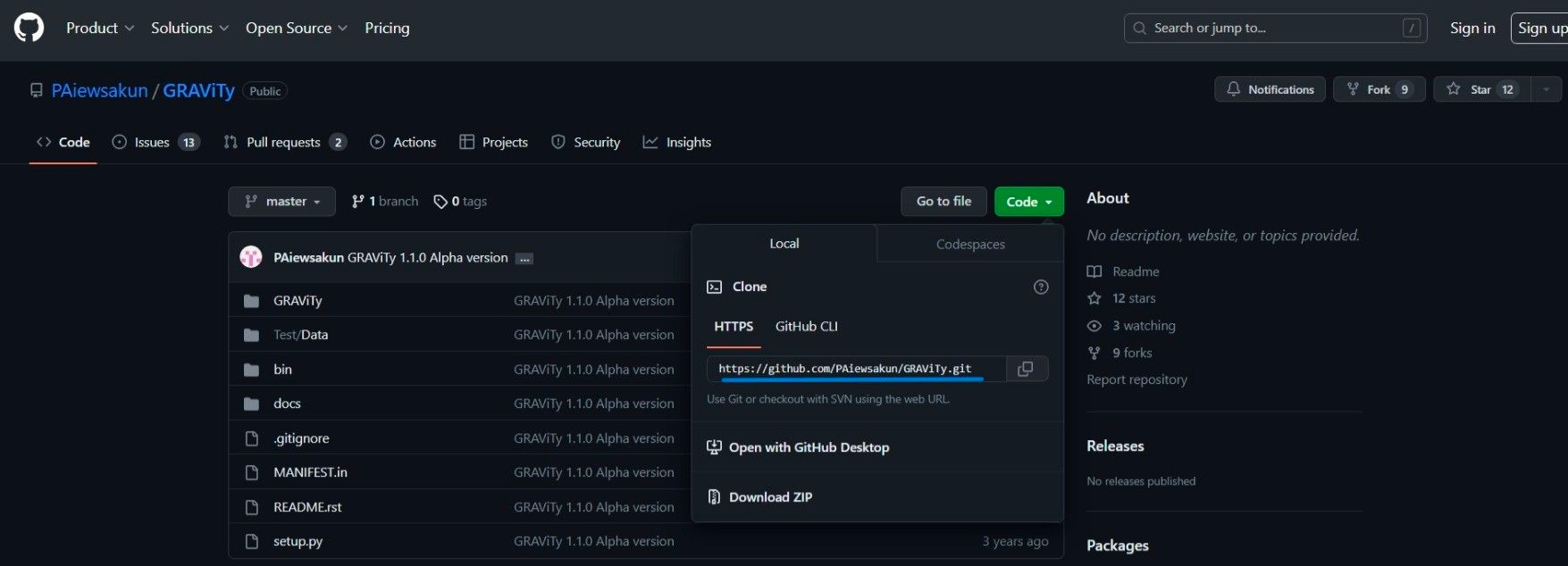
$ git clone <url of github repository>
This URL can be copied from GitHub repository. In the figure below, the blue line indicates the URL of the corresponding repository (repo) page:
The cloned directory should include instructions for installing the Python package.
Be sure that you're either in an existing mamba environment or create a new one that supports the listed dependencies. TYPICALLY THE DEPENDENCIES ARE OVERSPECIFIED-- dependency files are typically very fragile and non-portable, and include precise versions for second-order dependencies. If your build is failing, try to remove all but the first-order dependencies (e.g., installing a versioned pytorch will automatically install the most stable version of numpy).
Using pip
pip is generally discouraged because it is a naive package adder, rather than a managed package adder/remover.
This means that if a package requires an newer package version as a dependency, it will blindly choose a version that works with the intended package, but without any concern for the other required packages. Often this will result in a broken environment where other packages are now mismatched with their own dependencies.
For this reason, prefer mamba everywhere. In select cases where dependencies are minimal/zero, pip may be useful, as are some suites that create self-contained/complete envs, such as pytorch.
For additional help on pip/mamba interaction see the Python Package Installation Method Comparison